How to Edit RPG Maker MV Save Files (.rpgsave) - Complete Guide
Introduction
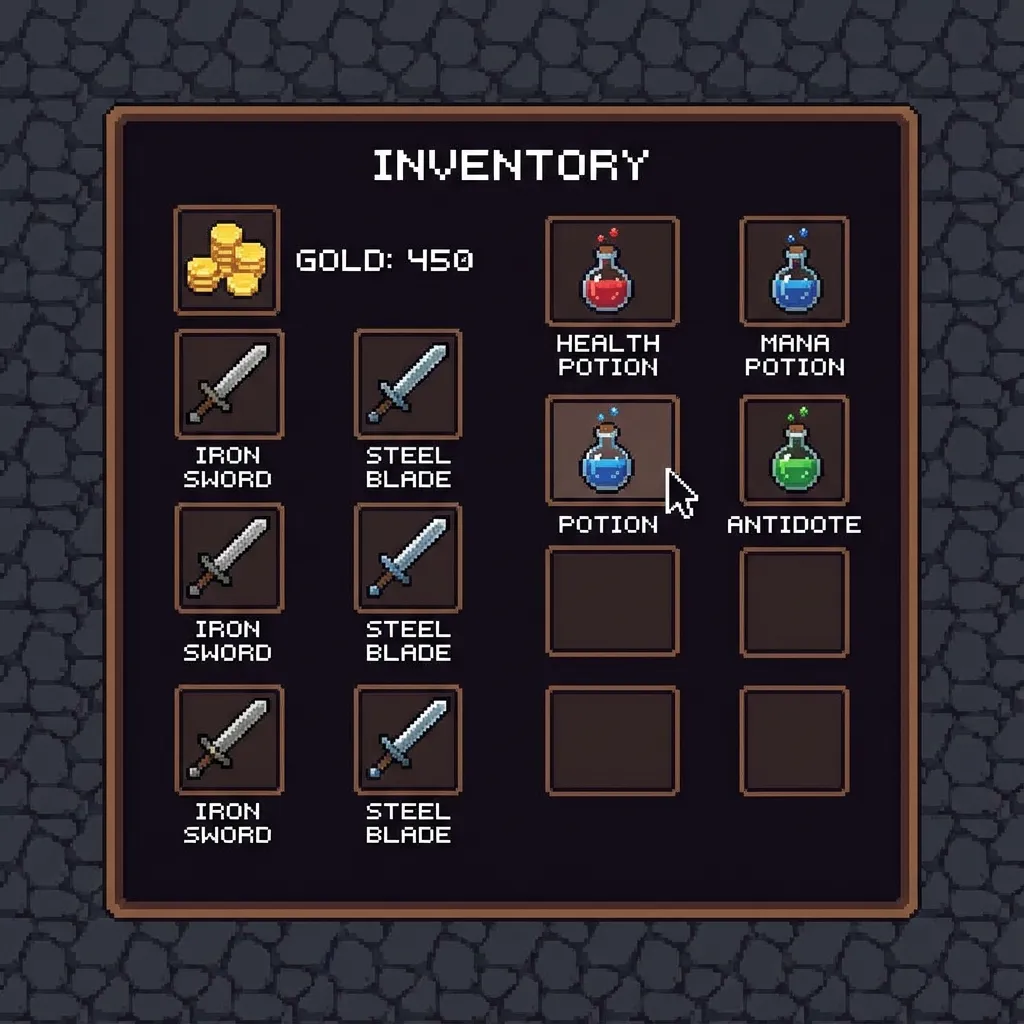
RPG Maker MV and MZ are two of the most popular game engines for creating JRPGs and adventure games. They power thousands of indie games on Steam, itch.io, and other platforms. If you’ve ever wanted to modify your save file to bypass a difficult boss, give yourself more gold, or experiment with different builds, this guide will show you exactly how to do it.
RPG Maker MV games use the .rpgsave file extension, while MZ games typically use the same format. These files are often compressed using LZString and are not human-readable in a standard text editor. That’s where our SaveEditor.Online comes in – it handles all the decompression and parsing for you, entirely in your browser.
Understanding the RPG Maker Save Format
Before we dive into editing, it helps to understand what’s inside a .rpgsave file. When you decompress and decode it, you’ll find a JSON object containing all the game state data:
- system: Game settings and global flags.
- party: Your party data, including gold (stored as
$gameParty._gold). - actors: Individual character data, including HP, MP, level, and equipment.
- map: Current map and event states.
- switches: Boolean flags used by game events.
- variables: Numeric values used by game events.
Our editor parses all of this and presents it in an easy-to-navigate interface.
Step 1: Locate Your Save File
For most Windows games, save files are located in one of these directories:
- Inside the game folder: Look for
www/save/or justsave/. Files are namedfile1.rpgsave,file2.rpgsave, etc., corresponding to save slots 1, 2, 3… - Local Storage (Web/NW.js games): Some games store saves in the browser’s IndexedDB or LocalStorage.
For Steam games, you can right-click the game in your library, select “Manage” > “Browse local files”, then navigate to the save folder.
Step 2: Create a Backup
This is the most important step. Before making any modifications:
- Copy your
.rpgsavefile. - Paste it with a different name, e.g.,
file1.rpgsave.backup.
If something goes wrong during editing, you can always restore from this backup.
Step 3: Upload to the Online Editor
- Navigate to our RPG Maker MV Editor.
- Drag and drop your
.rpgsavefile into the upload area, or click to browse. - Wait a few seconds for the file to be parsed.
The main editor parses compatible save files in your browser.
Step 4: Edit Common Values
Once the file is loaded, you’ll see a “Quick Edit” panel for common values:
Gold
Change the Gold / Money field to a reasonable test value, then verify the result in-game.
Character Level
For RPG Maker MV/MZ, character levels are stored within the actors array. Using the Quick Edit panel, you can modify the party leader’s level directly. To change other characters, switch to “Advanced (JSON)” mode and navigate to actors._data.[character_id].level.
HP and MP
In Advanced mode, you can find _hp and _mp fields for each actor. Set them to your desired values.
Step 5: Edit Advanced Values (Variables & Switches)
Many games use switches (on/off flags) and variables (numeric values) to track quest progress, unlocks, and more.
- Switches: Stored as an array of booleans. Switch ID 1 is at index 1, etc. Setting a switch to
truecan unlock doors, trigger events, or skip cutscenes. - Variables: Stored as an array of numbers. Variable ID 5 might track “number of enemies defeated”, for example.
To find out which switch or variable controls what, you may need to consult the game’s community wiki or experiment.
Step 6: Download and Replace
- Click the Download Modified Save button.
- The file will download with its original name (e.g.,
file1.rpgsave). - Move the downloaded file to your game’s save folder, replacing the original.
- Launch the game and load your save!
Troubleshooting
The game says my save is corrupted
- Restore your backup and try again.
- Make sure you didn’t accidentally change the structure of the JSON (e.g., removing a bracket).
- If using Advanced mode, double-check that all fields are valid (no
NaNvalues, no missing commas).
My changes didn’t take effect
- Some values are calculated on load (e.g., max HP based on level). You may need to change the underlying stat, not just the current value.
- The game might have anti-cheat measures that reset values on load. This is rare for single-player RPG Maker games.
Frequently Asked Questions
Q: Is this safe? A: The main editor parses compatible files in your browser.
Q: Will this work for RPG Maker MZ?
A: Yes! MZ uses the same .rpgsave format as MV.
Q: Can I use this on mobile? A: If you can access the save file (e.g., via a file manager on Android), you can upload it from your phone.
Q: Does this work for encrypted games? A: If the game only encrypts assets (images, audio) but not saves, yes. If the save file itself is encrypted, you’ll need the game’s decryption key.
Conclusion
Editing RPG Maker saves is straightforward with the right tool. Whether you want to experiment, skip grinding, or just have fun, our free online editor makes it easy. Remember to back up your saves, and happy gaming!
Further Reading
Expand your RPG Maker knowledge with these related guides:
- 📖 RPG Maker Save File Structure Explained - Technical deep-dive into save formats
- 🎮 RPG Maker Games Page - Save locations for popular games
- 📂 Common Save File Extensions - Understanding .rpgsave, .rvdata2, and more
- 🔧 RPG Maker Editor - The online tool used in this guide
- 🎭 GameMaker Save Editing Guide - Similar techniques for GM games
Last updated: January 2026
Related Articles
Ready to edit your save file?
Use our free online editor to modify your game saves instantly.
Launch Save EditorRelated Articles
How to Edit Unity PlayerPrefs and XML Saves - Complete Guide
A complete guide to modifying Unity game save files on Android, iOS, and PC. Learn how to edit PlayerPrefs, XML, JSON, and Plist files for any Unity game.
How to Edit Unreal Engine Save Files (.sav) - Complete GVAS Guide
Compatibility-first guide for Unreal Engine 4/5 `.sav` workflows. Learn GVAS parsing, safe browser limits, and when to switch to dedicated game-specific tools.