GameMaker Save Editing: Complete Guide to INI and JSON Files
Introduction to GameMaker Saves
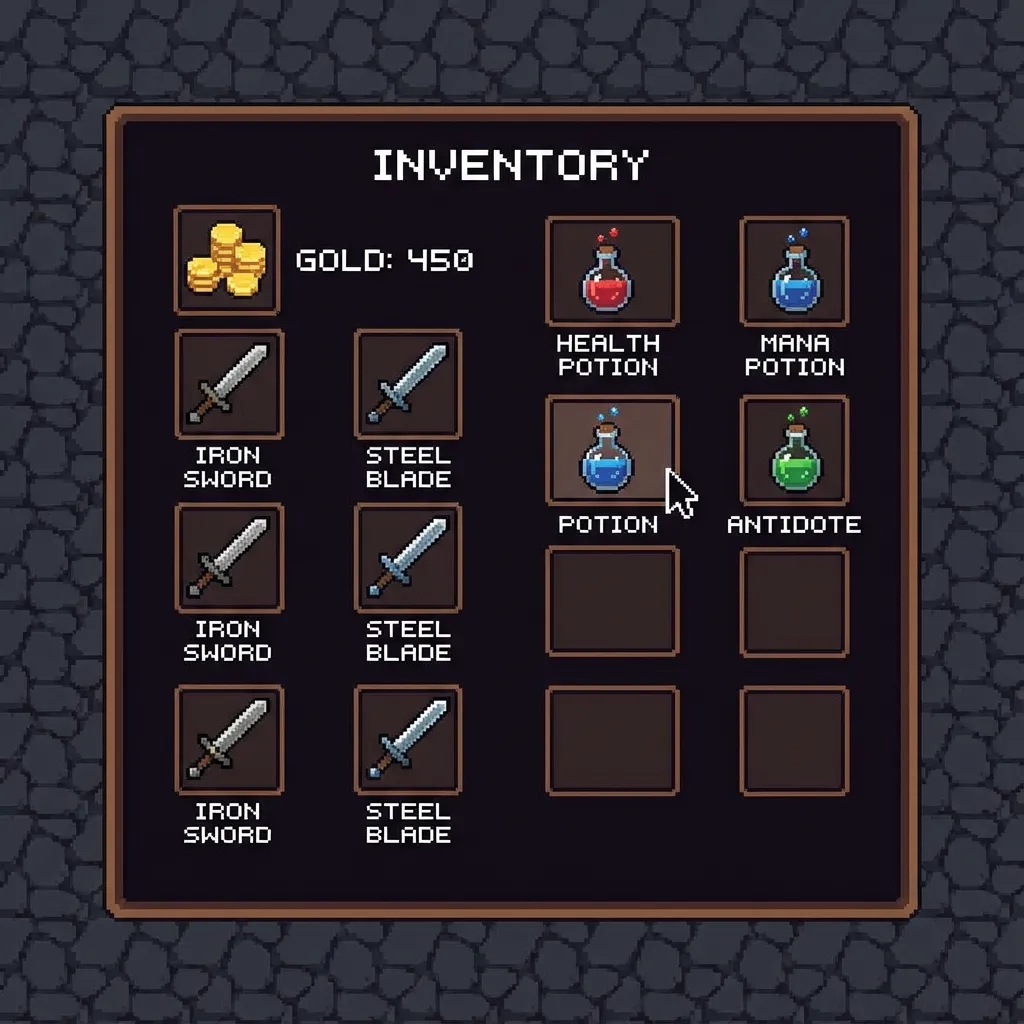
GameMaker Studio (GMS) is one of the most popular game engines for 2D games, powering iconic titles like Undertale, Deltarune, Hotline Miami, Hyper Light Drifter, and countless indie hits. If you’ve ever wanted to modify your save file to unlock content, change your stats, or experiment with different outcomes, this guide is for you.
Unlike engines with a standardized save system, GameMaker gives developers complete freedom in how they store data. This means save formats vary widely, but most fall into a few common categories that our editor fully supports.
Common GameMaker Save Formats
1. INI Files (Most Common)
The ini_* functions in GameMaker are extremely popular due to their simplicity:
[player]
name="Frisk"
hp=20
maxhp=20
love=1
gold=50

[flags]
met_sans=1
spared_toriel=1
Games using INI: Undertale (PC), Deltarune Chapter 1, many indie RPGs
2. JSON Files
Modern GameMaker games often use JSON for more complex data:
{
  "player": {
    "name": "Kris",
    "hp": 100,
    "items": ["healing_item", "weapon_01"]
  },
  "chapter": 2,
  "choices": {
    "route": "pacifist"
  }
}
Games using JSON: Deltarune Chapter 2, newer GMS2 titles
3. Binary Files (ds_map_secure)
Some developers use ds_map_secure_save() which creates encrypted binary files. These are harder to edit but not impossible with the right tools.
4. Plain Text Files
Simple games may just use file_text_* functions to write raw data.
Finding GameMaker Save Files
Windows Locations
Most GameMaker games store saves in:
%LocalAppData%\[GameName]\For example:
- Undertale:
%LocalAppData%\UNDERTALE\ - Deltarune:
%LocalAppData%\DELTARUNE\
Steam Cloud
Many games sync to Steam Cloud. Save locations for these:
%ProgramFiles(x86)%\Steam\userdata\[SteamID]\[AppID]\remote\macOS
~/Library/Application Support/[GameName]/Undertale Save Editing Guide
As the most famous GameMaker game, Undertale deserves special attention:
File Structure
| File | Purpose |
|---|---|
file0 | Main save data (no extension, but INI format) |
file8 | Persistent data (Flowey’s memory) |
file9 | ”True Reset” prevention data |
undertale.ini | System data (fun value, settings) |
Key Variables in file0
[General]
Name="Frisk"        ; Player name
Love=1              ; LV (Level of Violence)
HP=20               ; Current HP
MaxHP=20            ; Maximum HP
AT=10               ; Attack
DF=10               ; Defense
Gold=100            ; Money
EXP=0               ; Experience points
Room=12             ; Current room ID

[Kills]
kills=0             ; Total kills (affects routes)
Modifying Routes
To switch between routes, you need to modify multiple variables:
Pacifist Route Prerequisites
kills=0
killed_flowey=0
Toriel_state=1
Papyrus_state=1
Undyne_state=1
Genocide Route Indicators
kills=20+           ; Kill count in current area
Fun=66              ; Special events value
Step-by-Step Editing Guide
Step 1: Locate and Backup
- Navigate to your game’s save folder
- Always create backups before editing:
cp file0 file0.backup
cp undertale.ini undertale.ini.backup
Step 2: Upload to Editor
- Go to our GameMaker Editor
- Upload your save file (
.ini,.json, or text file) - The editor will automatically detect the format
Step 3: Make Changes
For INI files, you’ll see a hierarchical view:
- Sections (e.g.,
[player],[flags]) - Key-value pairs under each section
For JSON files, you’ll see the full object tree.
Step 4: Download and Replace
- Click Download Modified Save
- Replace the original file
- Launch the game to verify changes
Advanced: Deltarune Editing
Deltarune uses a more complex save system:
Chapter 1 (INI Based)
Similar to Undertale but with new variables:
[Actors]
actor0_Name="Kris"
actor0_HP=100
actor0_MaxHP=100

[Items]
item0="Broken_Key_A"
item1="ReviveMint"
Chapter 2+ (JSON Based)
Uses JSON with nested objects:
{
  "Recruitment": {
    "recruited_tasque_manager": false,
    "recruited_swatchlings": true
  },
  "Snowgrave": {
    "route_active": false,
    "proceed_count": 0
  }
}
Troubleshooting
”Save Data Corrupted” Error
Causes:
- Invalid INI syntax (missing quotes, brackets)
- Changed data types (string where number expected)
- Removed required sections
Solution: Restore from backup and make smaller changes
Changes Don’t Save
Possible Issues:
- Steam Cloud: Overwriting your local changes
- Read-only file: Check file permissions
- Wrong file: Some games have multiple save files
Game Crashes on Load
Likely Causes:
- Invalid room ID (Room=999 for non-existent room)
- Negative HP or stats
- Missing required variables
Tips for Finding Variables
When the variable names aren’t obvious:
- Make a change in-game and compare save files
- Search game wikis for known variables
- Look for patterns:
kills,hp,gold,flagsare common names - Check for base64 encoded strings (some games encode specific values)
Related Editors
Depending on the game engine, you might also need:
- Unity Save Editor – For Unity-based games
- RPG Maker Editor – For RPG Maker titles
- Ren’Py Viewer – For visual novels
Conclusion
GameMaker’s flexibility means there’s no one-size-fits-all approach to save editing, but the most common formats (INI and JSON) are well-supported by our editor. Whether you’re trying to unlock a secret ending in Undertale or just experimenting with Deltarune, the key steps are:
- Find your save file
- Backup before editing
- Edit carefully with our tool
- Test your changes in-game
If you encounter any unusual save formats or have suggestions for improvement, please contact us. Happy editing!
Further Reading
Expand your GameMaker knowledge with these related guides:
- 📖 Undertale Wiki - Save Files - Community documentation for Undertale
- 🎮 Undertale Game Page - Save locations and editable items
- 📂 Common Save File Extensions - Understanding .ini, .json, and more
- 🔧 GameMaker Editor - The online tool used in this guide
- 🎭 RPG Maker Save Editing Guide - Another popular indie game engine
Last updated: January 2026
Related Articles
Ready to edit your save file?
Use our free online editor to modify your game saves instantly.
Launch Save EditorRelated Articles
How to Edit RPG Maker MV Save Files (.rpgsave) - Complete Guide
A complete guide on how to edit RPG Maker MV save files using our free online tool. Modify gold, stats, items, and variables easily. Works for MV and MZ.
How to Edit Unity PlayerPrefs and XML Saves - Complete Guide
A complete guide to modifying Unity game save files on Android, iOS, and PC. Learn how to edit PlayerPrefs, XML, JSON, and Plist files for any Unity game.